

Interfaces
A console in two looks
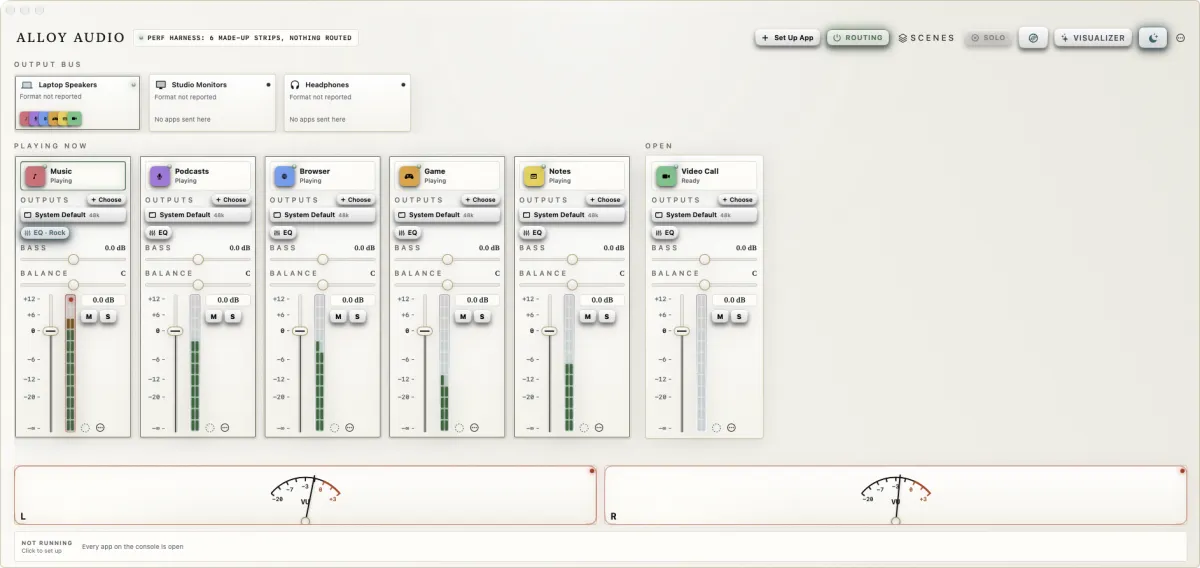
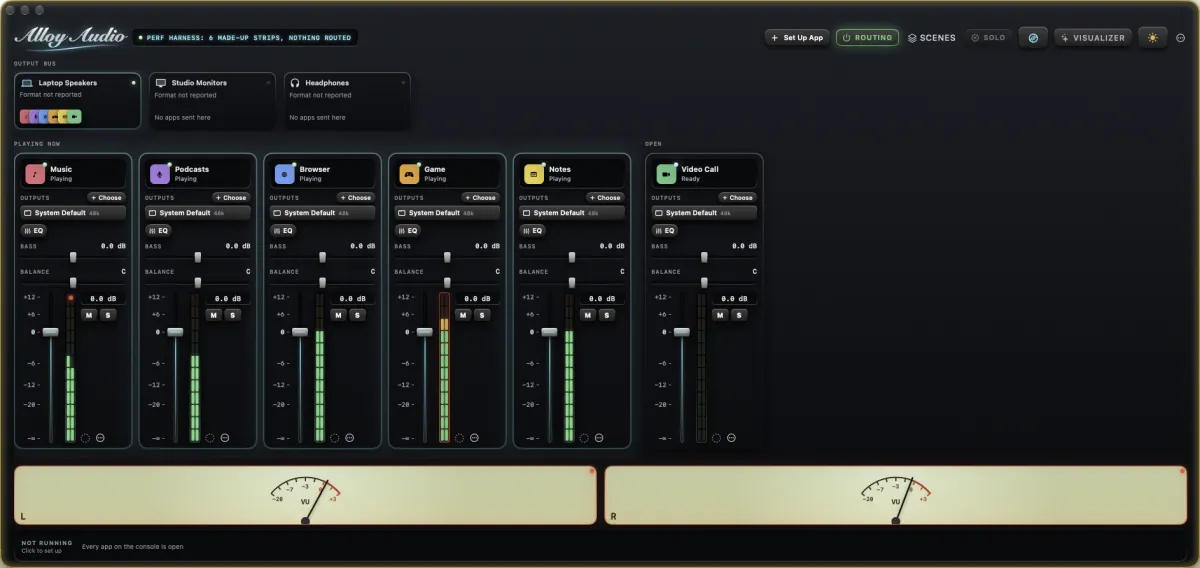
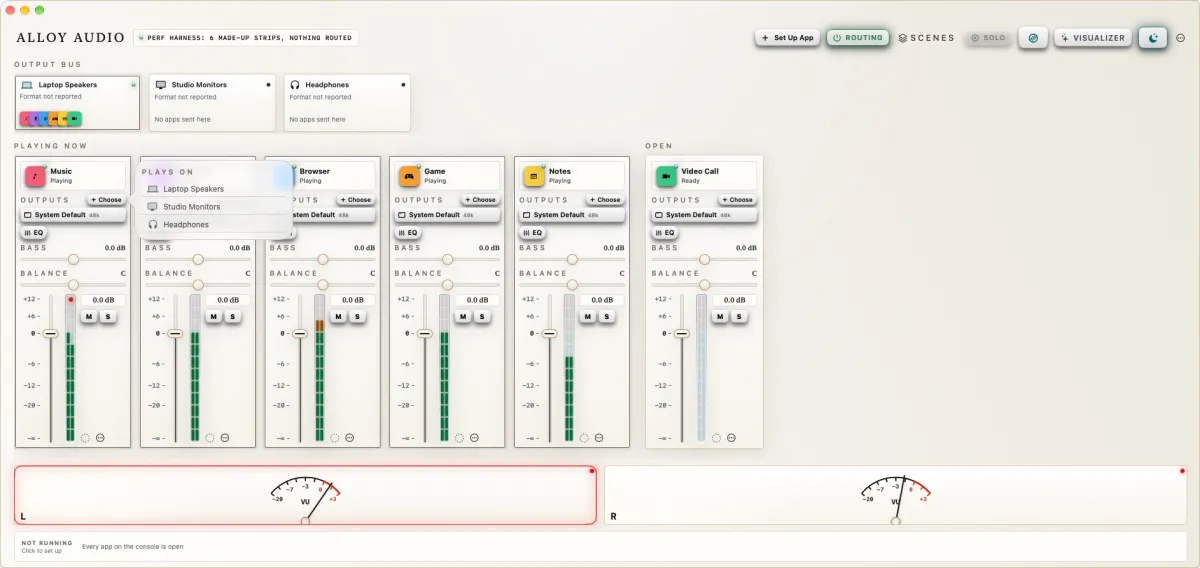
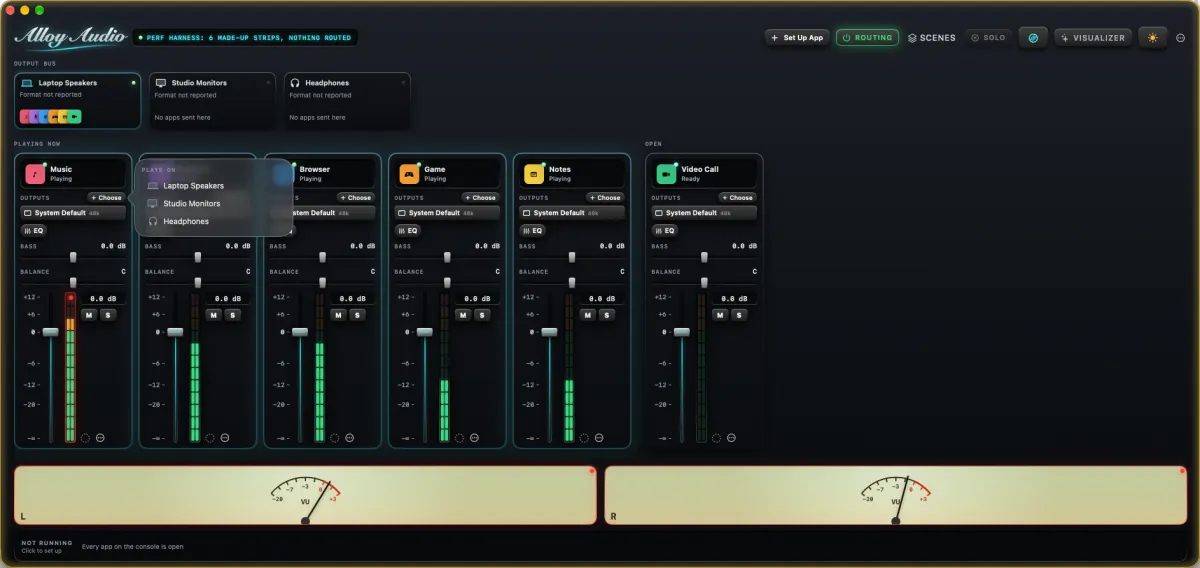
Dark for night sessions, light for a bright desk. The same controls in the same places, so nothing has to be relearned.
Same desk, your choice of light
Use the Look switch under the picture. Every control is where you left it.
- Click Choose
- Tick Headphones
- Click Choose again
- Tick Living Room too
- Open the EQ
- Pick the Bass preset
- Drag a band up or down
- Open Scenes
- Save the scene
- Click S to solo Game
The real app, in demo mode
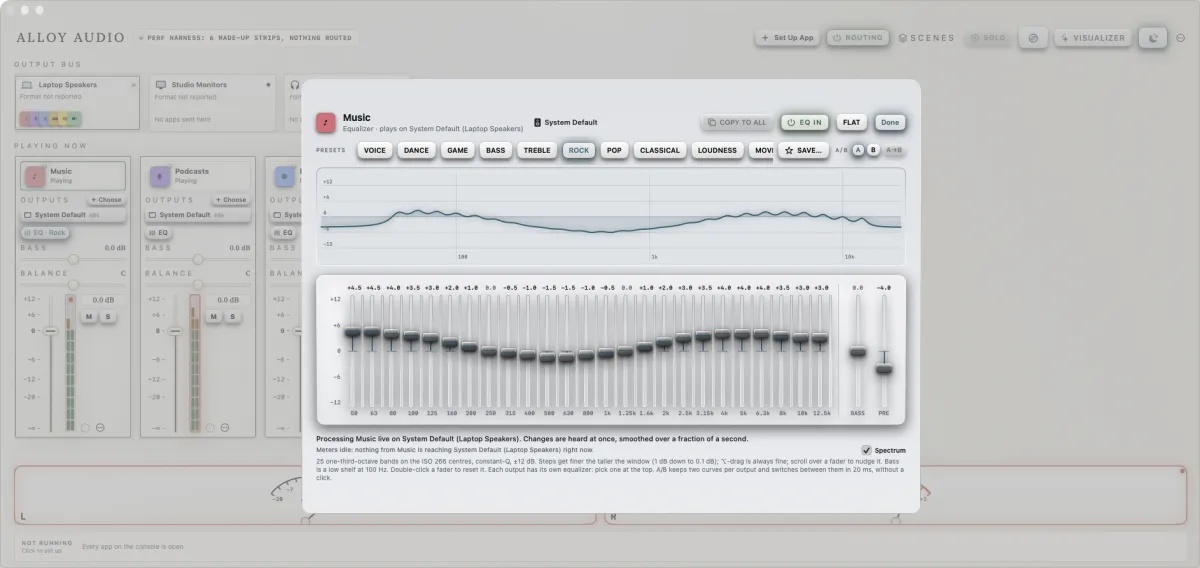
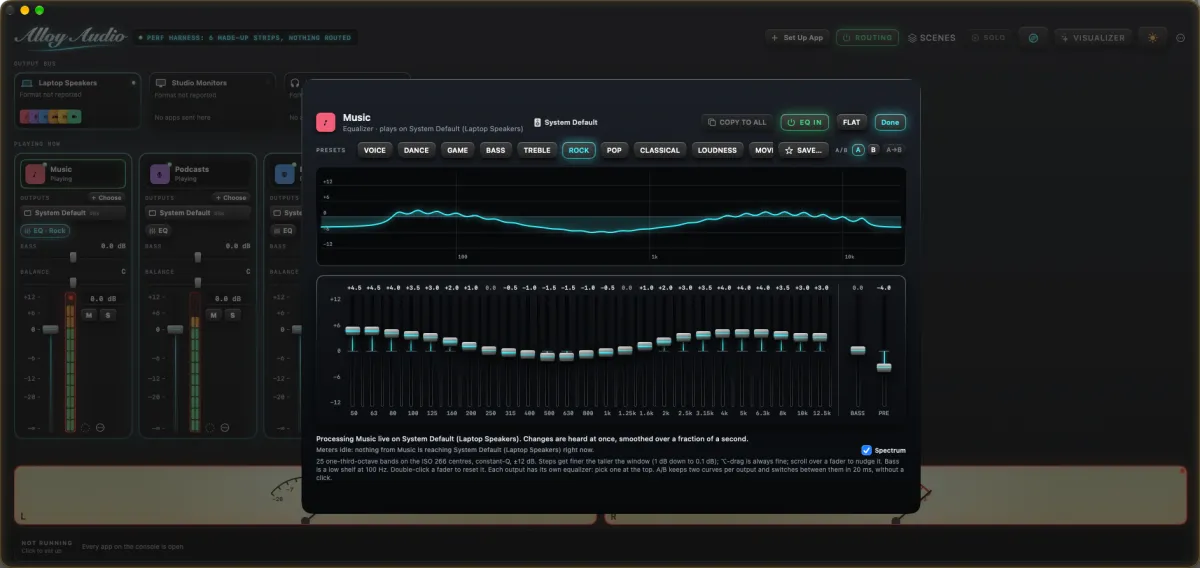
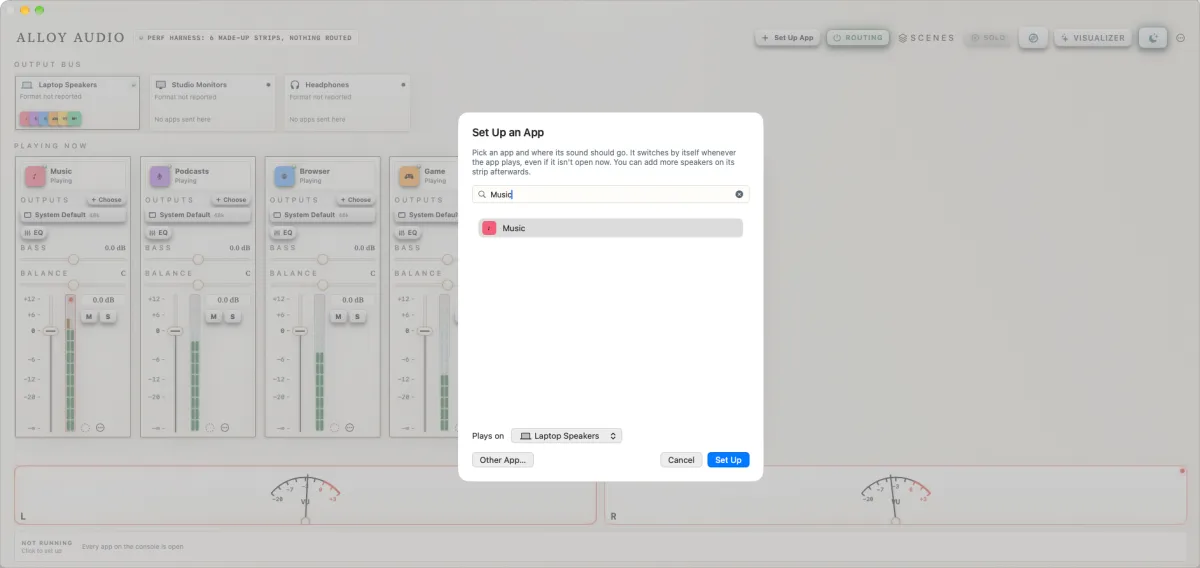
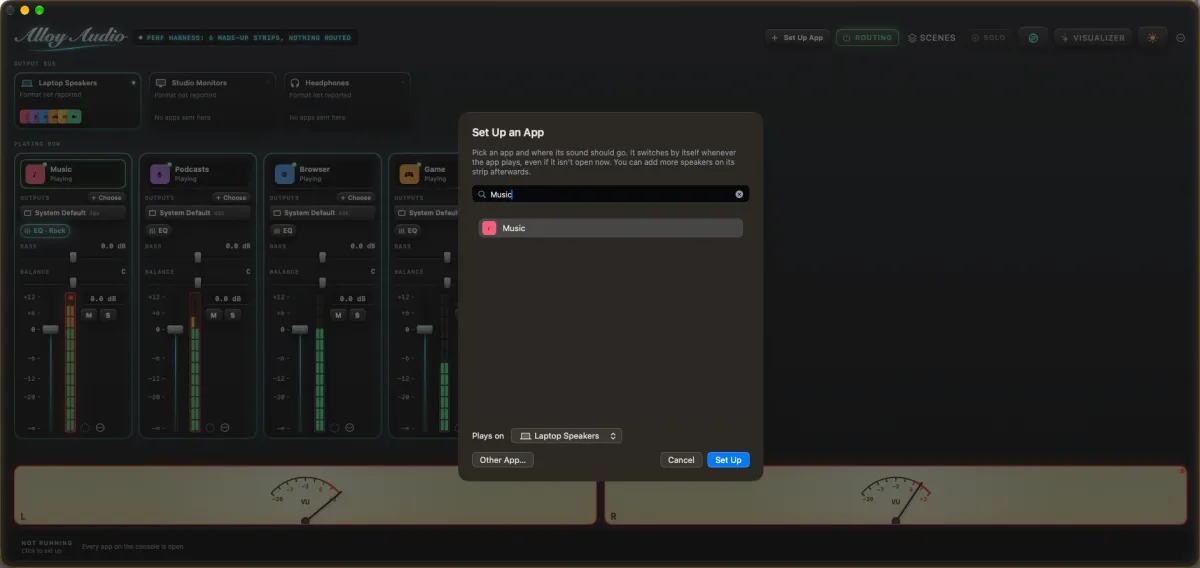
Screenshots of the app running in demo mode with made-up app names and three example speakers; nothing is routed. Light and dark follow the page theme.
Parts
What is on the desk
Channel strip
One strip per app: its output chip, EQ, fader, level meter, mute and solo.
Output cards
Each speaker or headset shows which apps are playing on it right now.
25-band EQ
A graphic equaliser for each app, with a live response curve and presets.
Scenes
Save a whole arrangement of apps and speakers, and bring it back later.
How it works
Watch the console do it, one click at a time. The cursor and the yellow-green arrows show where to click.