

Alloy Audio

Sends each app's sound to the speaker you choose — music to the living-room speaker, a call to your headset, a game to the monitor — at the same time, with a 25-band equalizer per app.

macOS 14.2+ · Apple silicon · 90-day free trial

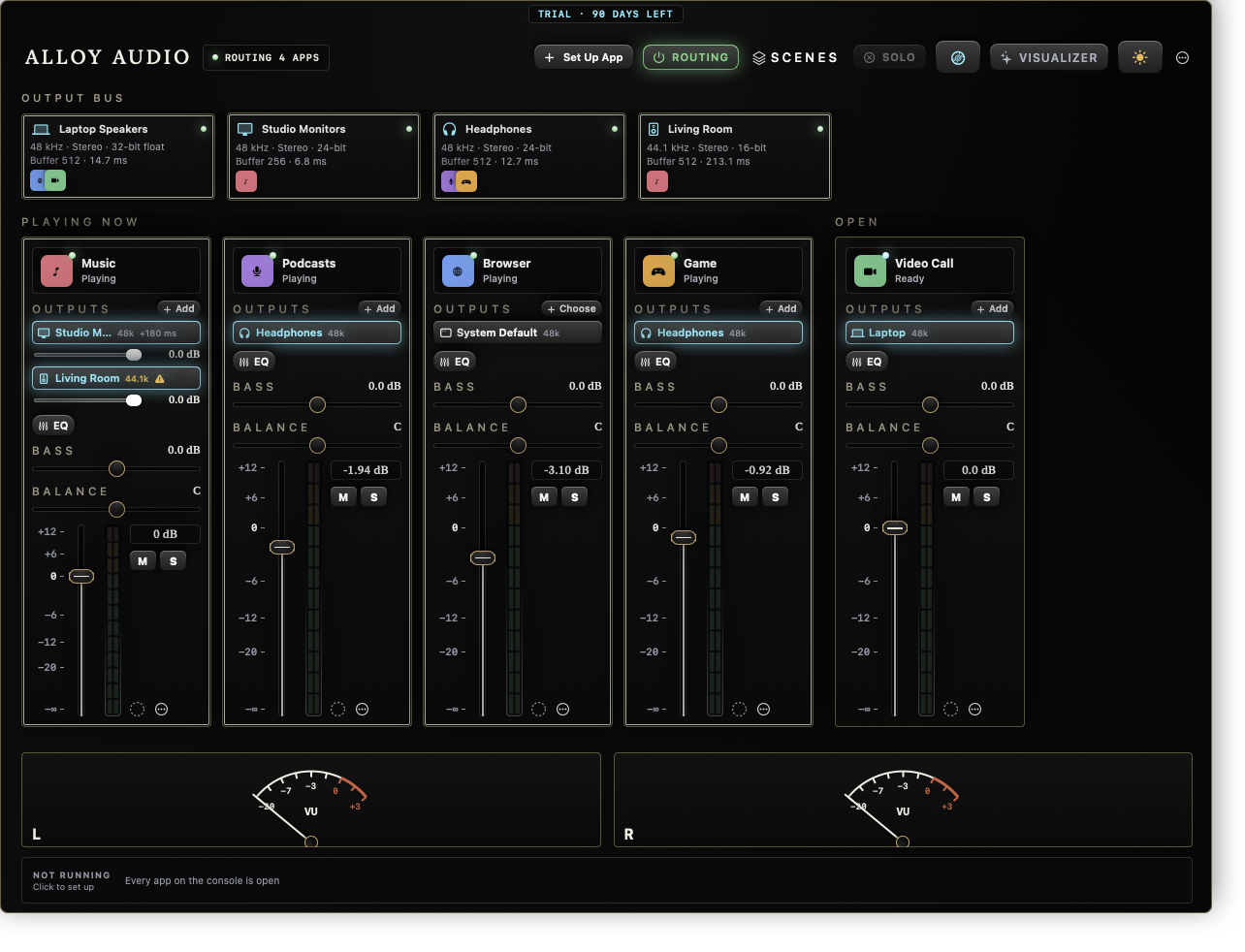
The AlloyAudio console on a Mac with sample apps: an output bus of four speakers across the top (Laptop Speakers, Studio Monitors, Headphones and Living Room), then a channel strip each for Music, Podcasts, Browser, Game and Video Call, each with its own outputs, equalizer, bass, balance, fader and level meter, and a pair of VU meters below. Music plays on two speakers at once.
The console on a Mac, drawn by the app itself with sample apps and speakers, routing five apps at once. The Music meter and the VU needles are animated here to show how they move with sound. Click to enlarge.
  1. 1Set Up App
  2. 2Output bus
  3. 3Pick a speaker
  4. 4EQ per app
  5. 5Fader and meter
  6. 6VU meters
  7. 7Click to set up

How it works

Three steps. Then it runs itself.

  1. 1
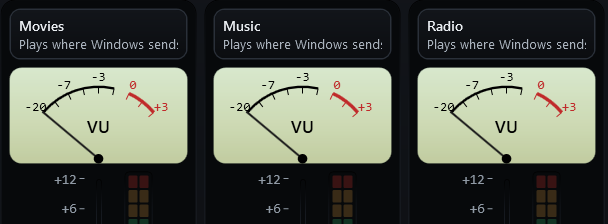
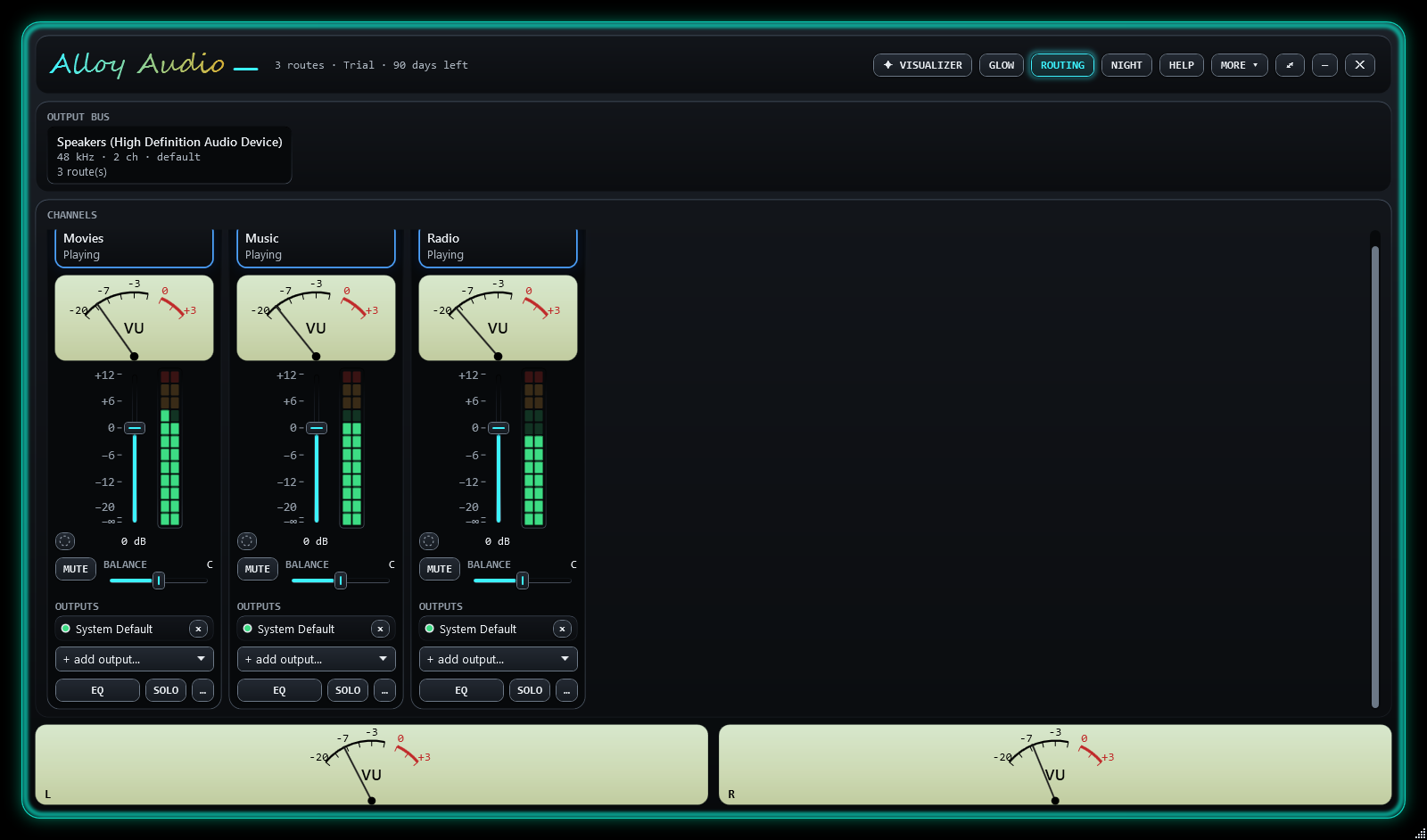
    Three channel strips on the console in the Windows test build: Movies, Music and Radio, each with its VU meter, fader and level meter.
    Windows

    Pick an app

    Every app is a channel strip on the console. Installed media apps appear there automatically — even ones that aren't open yet.

  2. 2
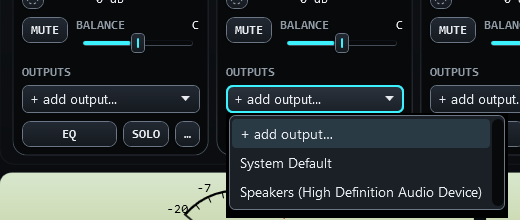
    A strip's output picker open on Windows, listing add output, System Default and Speakers (High Definition Audio Device).
    Windows

    Pick a speaker

    Choose where that app plays: one speaker, or several at once, each with its own level. On a Mac you can also drag the app from Finder straight onto a speaker.

  3. 3
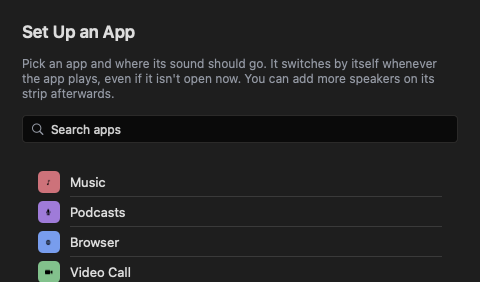
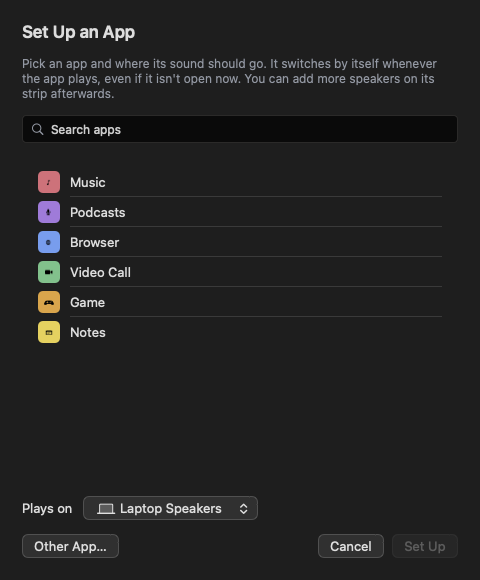
    The Set Up an App sheet on a Mac: pick an app such as Music, Podcasts, Browser or Video Call and where its sound should go; it switches by itself whenever the app plays.
    Mac

    It switches by itself

    Set it once, ahead of time. When the app starts playing, AlloyAudio is built to send it to your speaker on its own.

Setup

Leave the system on your speakers. AlloyAudio routes from there.

Keep your computer's own sound output set to its built-in speakers, the way it came. Your apps play to it as usual; AlloyAudio picks up each app's sound there and sends it to the speaker you choose on that app's strip. AlloyAudio never changes the system output itself.

MacThe Setup Guide, step by step

Rendered from the app's own screens with sample data; the speaker and app names in them are examples.

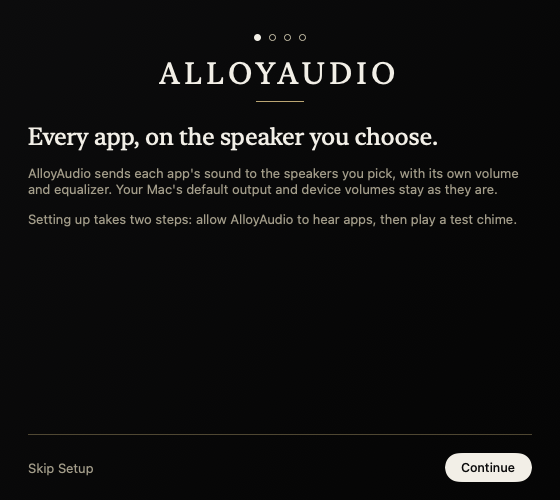
Setup Guide welcome screen: Every app, on the speaker you choose. It says the Mac's default output and device volumes stay as they are, and that setup takes two steps.
1Welcome. Your Mac's default output stays as it is.
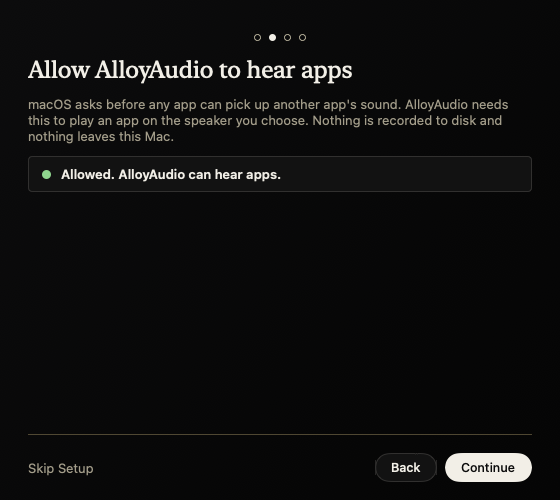
Setup Guide step: Allow AlloyAudio to hear apps, showing Allowed. AlloyAudio can hear apps.
2Allow AlloyAudio to hear apps.
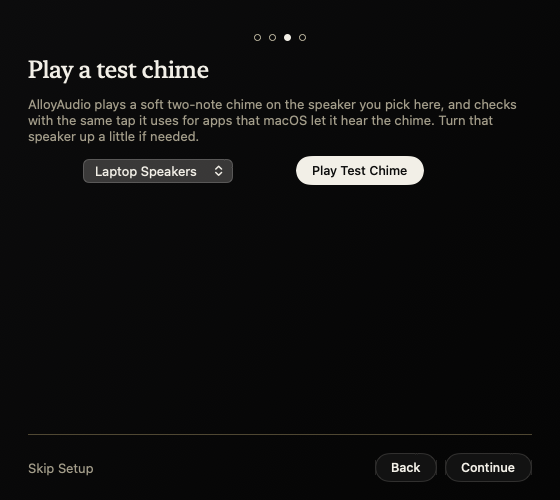
Setup Guide step: Play a test chime, with a speaker picker and a Play Test Chime button.
3Play a test chime on a speaker you pick.
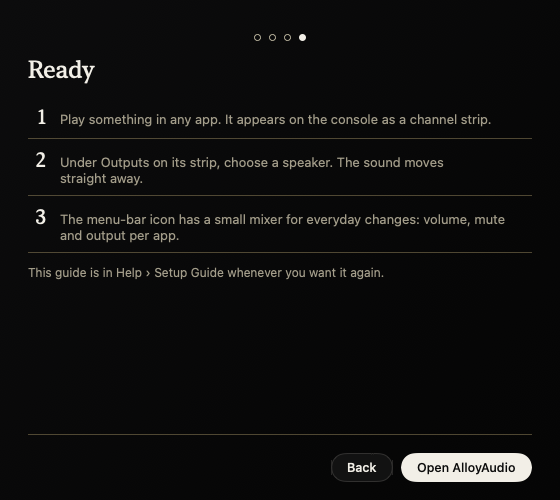
Setup Guide Ready screen with three tips: play something, choose a speaker under Outputs, and use the menu-bar mixer.
4Ready: play something and pick its speaker.
The Set Up an App sheet: a searchable list of apps and a Plays on speaker picker, with Other App, Cancel and Set Up buttons.
+Set Up an App: pick an app ahead of time and where it plays. It switches by itself whenever the app plays.

Set up apps before they play

Press Set Up App on the console, choose the app and the speaker. The strip waits ("Starts when it plays") and routes the sound the moment the app makes any. Add more speakers on its strip afterwards.

WindowsThe same guide on Windows 11

Real screenshots of the Windows test build, taken in the Windows 11 virtual machine it was tested in. "Music" is a silent test source; "Speakers (High Definition Audio Device)" is that machine's sound device.

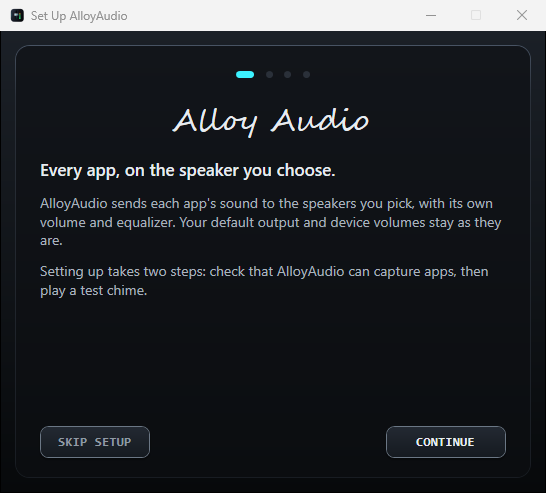
Windows Setup Guide, step 1 of 4: the welcome screen of AlloyAudio.
1Welcome to AlloyAudio on Windows.
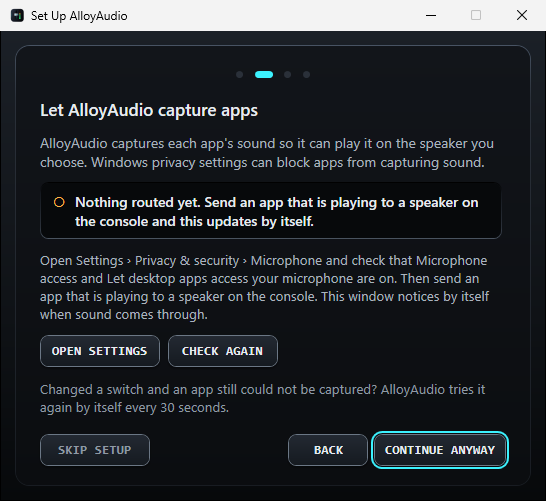
Windows Setup Guide, step 2 of 4: Let AlloyAudio capture apps. It says to open Settings, Privacy and security, Microphone, and check that Microphone access and Let desktop apps access your microphone are on, with Open Settings and Check Again buttons.
2Let AlloyAudio capture apps (Windows privacy settings).
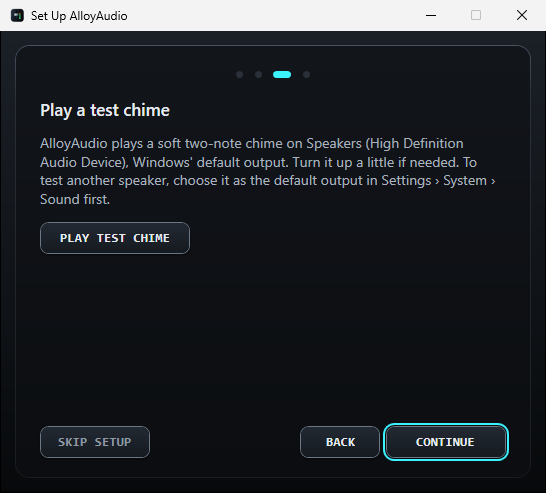
Windows Setup Guide, step 3 of 4: the speaker check, with a speaker picker set to Speakers (High Definition Audio Device) and a Play Test Chime button.
3Play a test chime on a speaker you pick.
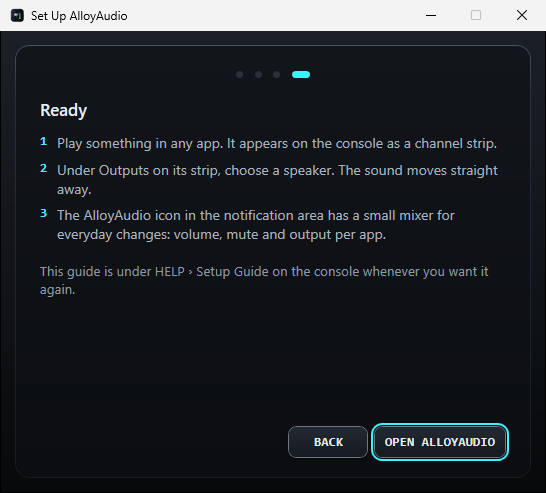
Windows Setup Guide, step 4 of 4: the finish screen.
4Ready: play something and pick its speaker.
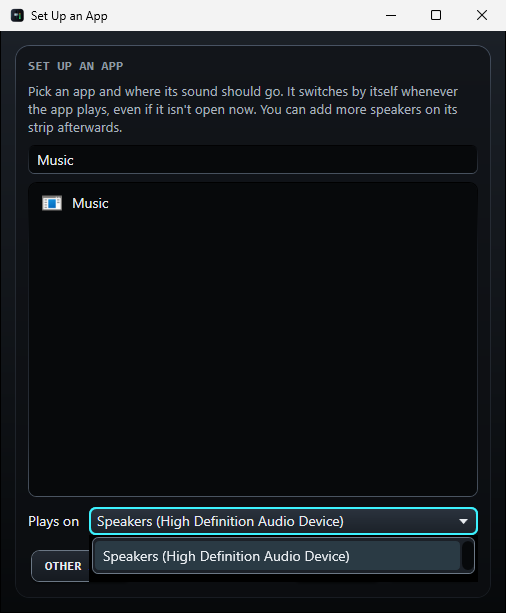
The Set Up an App window on Windows: Music found in the search box and the Plays on list open, showing Speakers (High Definition Audio Device).
+Set Up an App on Windows: choose the app and where it plays.

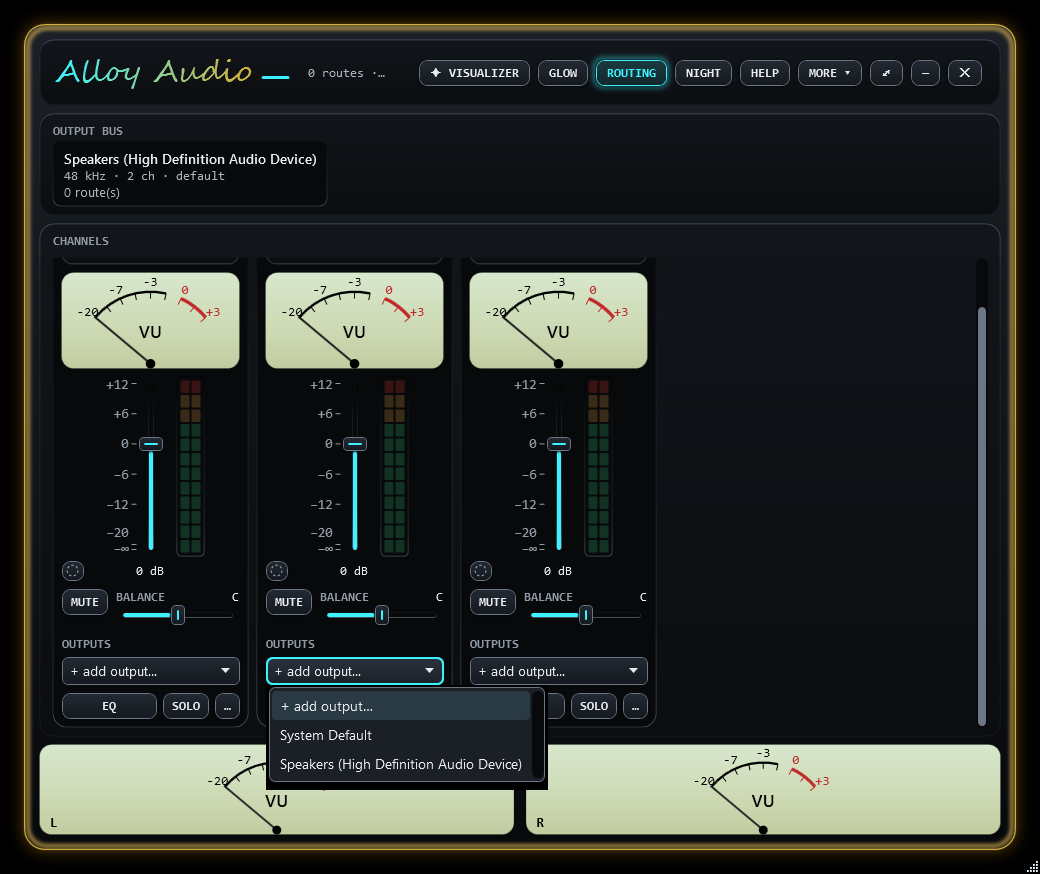
Pick a speaker on any strip

Each strip has an Outputs picker: choose + add output… and a speaker, and the app's sound moves there. Add more outputs to the same strip to play one app on several speakers.

The AlloyAudio console on Windows with the output picker open on the middle strip, listing add output, System Default and Speakers (High Definition Audio Device).
The output picker open on a strip (Windows)

Mac · macOS 14.2 or later

Set up on a Mac

  1. Open System Settings › Sound › Output and choose your Mac's own speakers (for example "MacBook Air Speakers"). Leave it there.
  2. Open AlloyAudio. Its Setup Guide asks you to allow System Audio Recording: choose Allow, or turn on AlloyAudio in System Settings › Privacy & Security › Screen & System Audio Recording.
  3. The guide plays a soft test chime on a speaker you pick, and checks that it heard it.
  4. Play something. The app appears as a channel strip; under Outputs, pick a speaker. The sound moves straight away.

In apps that have their own speaker setting, such as Teams or Zoom, leave it on the system default so AlloyAudio can route them. The Setup Guide is in Help › Setup Guide whenever you want it again.

Windows 11 · test build

Set up on Windows

  1. Open Settings › System › Sound and leave Output on your PC's usual speakers.
  2. Unzip the download and run AlloyAudio.Win.exe. If SmartScreen appears, choose More info › Run anyway.
  3. The Setup Guide opens. If Windows blocks capture, open Settings › Privacy & security › Microphone and turn on Microphone access and Let desktop apps access your microphone. Windows files app-sound capture under that setting; AlloyAudio captures each app's own sound and does not record your microphone.
  4. Play something. Each app gets a channel strip; pick its speaker in the strip's output picker.

The Windows build is a test build, checked in a Windows 11 virtual machine only.


A closer look

Every app gets its own channel strip.

These are AlloyAudio's own screens, not mock-ups. The Mac pictures are drawn by the app itself with sample apps and speakers; the Windows pictures are screenshots of the test build.

The output bus on a Mac: four speaker tiles, Laptop Speakers, Studio Monitors, Headphones and Living Room, each with its sample rate, bit depth, buffer and latency, and the icons of the apps playing on it.
01

See every speaker at a glance

The output bus lists each speaker with its format and buffer, and shows the icons of the apps playing on it right now.

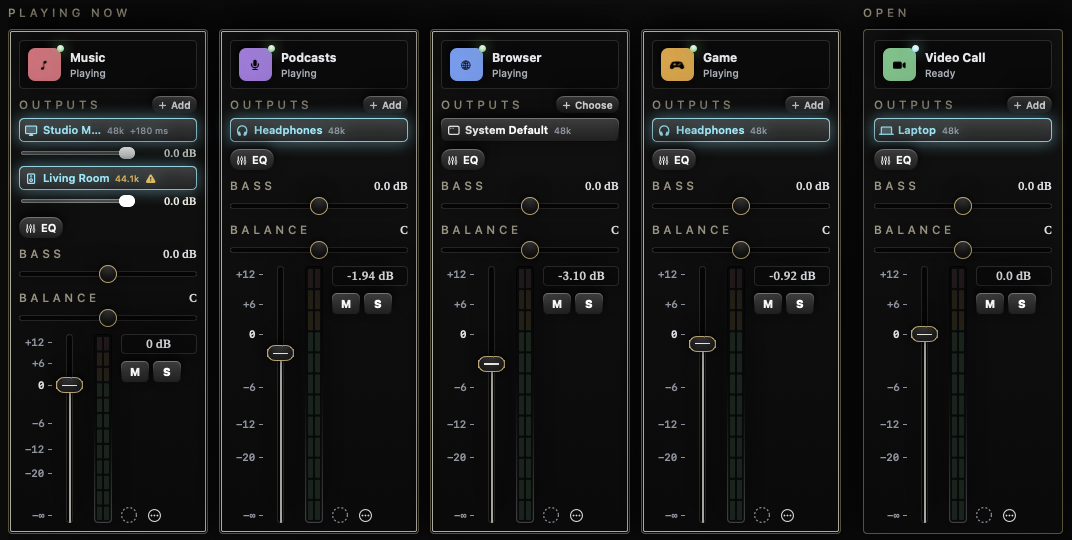
Five channel strips on a Mac: Music on the studio monitors and the living-room speaker, then Podcasts, Browser, Game and Video Call, each with its outputs, an equalizer button, bass, balance, a fader, mute and solo.
02

Pick a speaker for each app

Music on the living-room speaker, a podcast on headphones, a video call on the laptop. Each strip has its own outputs, equalizer preset, bass, balance, fader, mute and solo.

Apps you set up ahead of time wait in the strip (“Starts when it plays”) and switch on by themselves.

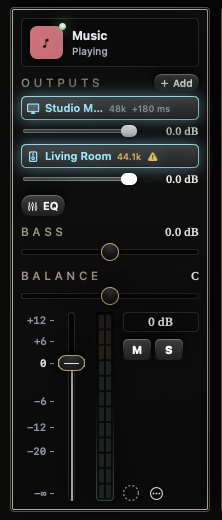
The Music strip on a Mac sending sound to two speakers at once, Studio Monitors and a Bluetooth Living Room speaker, each with its own level slider; the monitors show +180 ms, the delay that keeps them in time with the slower Bluetooth speaker.
03

One app, several speakers

Press + Add to send one app to several speakers at the same time, each with its own level. Here Music plays on the studio monitors and a Bluetooth speaker in the living room together, and the monitors wait 180 ms so both stay in time.

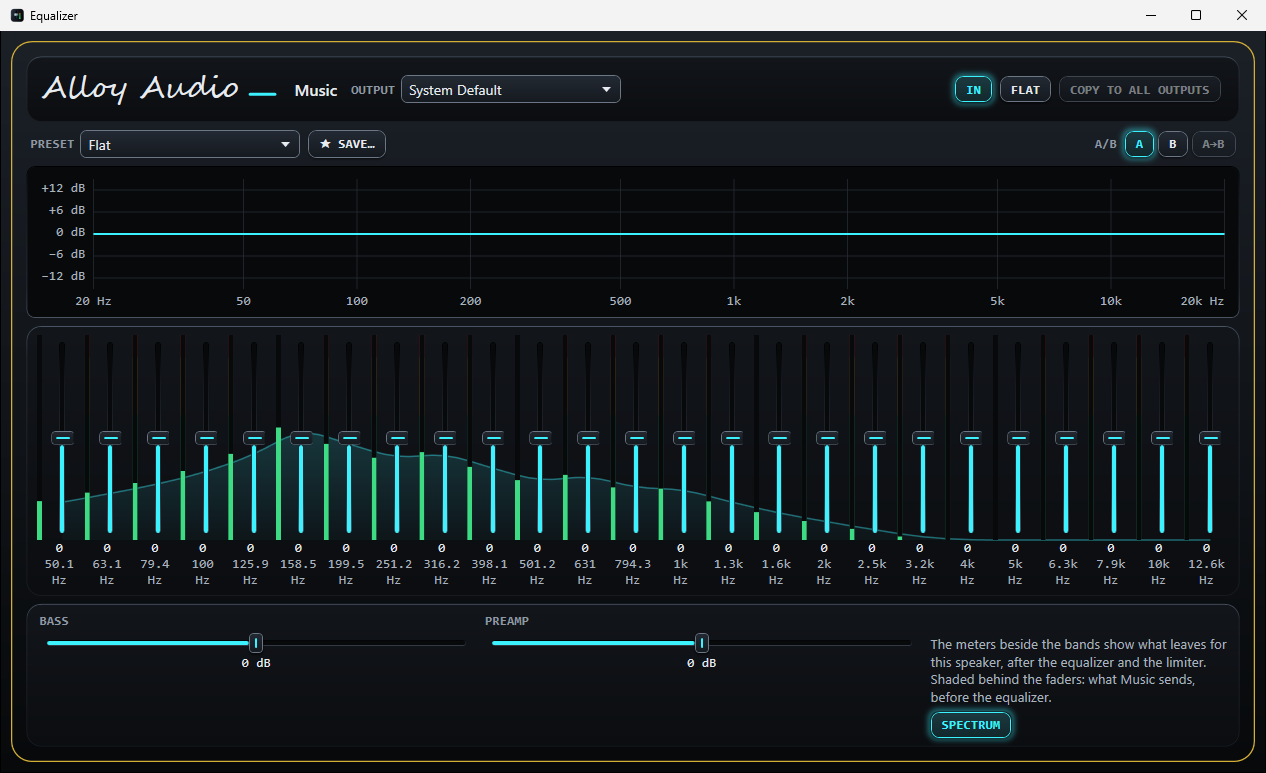
The AlloyAudio 25-band equalizer for one app, with a fader per band from 50 Hz to 12.5 kHz, live level bars behind the faders, and bass and preamp controls below.
Shown on the Windows test build; the Mac equalizer has the same 25 bands.
04

A 25-band equalizer per app

ISO one-third-octave bands from 50 Hz to 12.5 kHz, ±12 dB each, with preamp, bypass and a live response curve. Presets such as Voice, Dance, Loudness and Classical lower the preamp to reduce clipping.

Animated from the app's own preset values.

A pair of analog-style VU meters on a Mac, left and right channels, with needles and a red zone above zero.
05

Meters you can read

Every strip has an LED level meter, and the console has a left and right VU meter pair along the bottom.

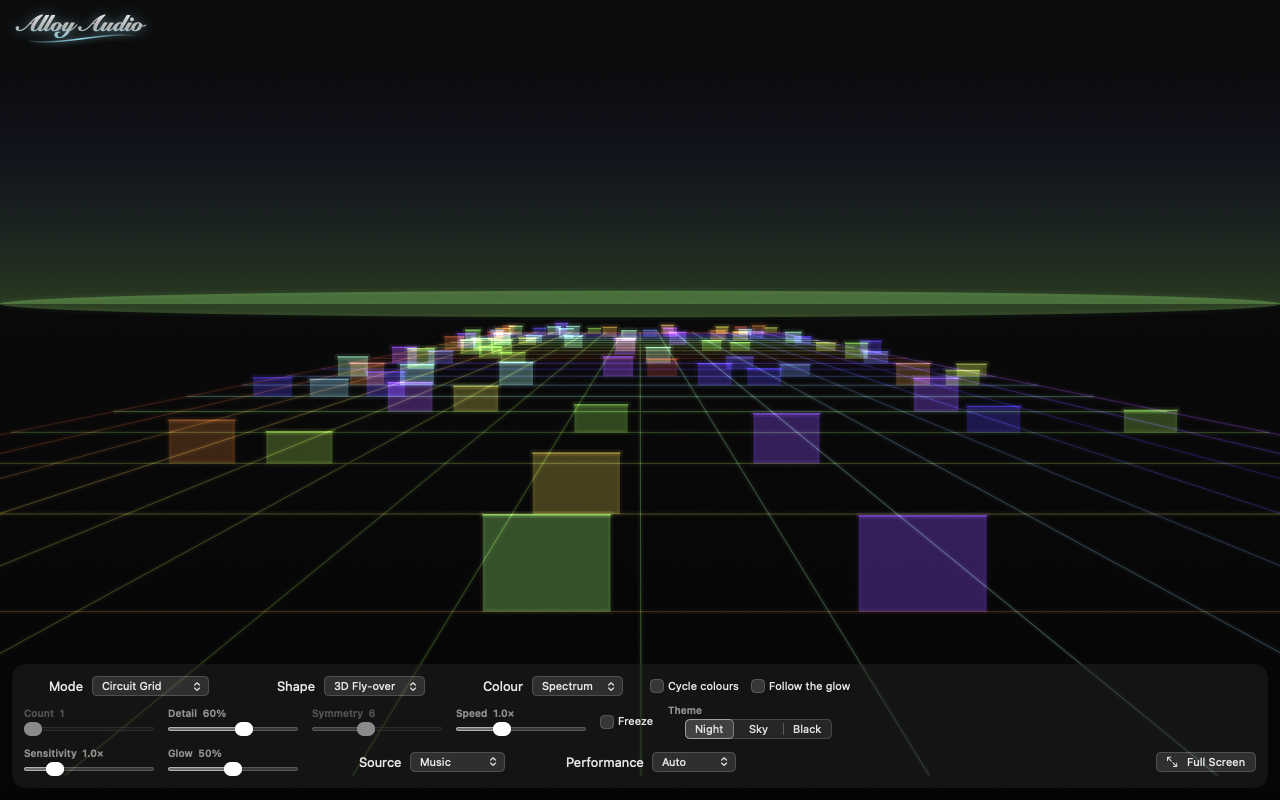
The AlloyAudio visualizer on a Mac in Circuit Grid mode with the 3D Fly-over shape: coloured blocks on a perspective grid running to a glowing horizon, with controls for mode, shape, colour, detail, speed, sensitivity, glow, theme and the source, here Music.
06

A visualizer for any app

Pick an app as the source and watch its sound. Modes, shapes, colour themes and full screen are built in. (The picture is drawn by the app with sample sound; on this page its grid is animated to show the motion. Click it to see the still.)


Also on Windows

Windows: a test build to try.

A free 90-day test build for Windows is on the download page. These pictures were taken in the Windows 11 virtual machine it was tested in; the sources are test apps named Movies, Music and Radio.

The AlloyAudio console on Windows: three apps, Movies, Music and Radio, each playing through its own channel strip with a VU meter, fader and output picker; the header reads Trial, 90 days left.
Console on Windows, three apps routed
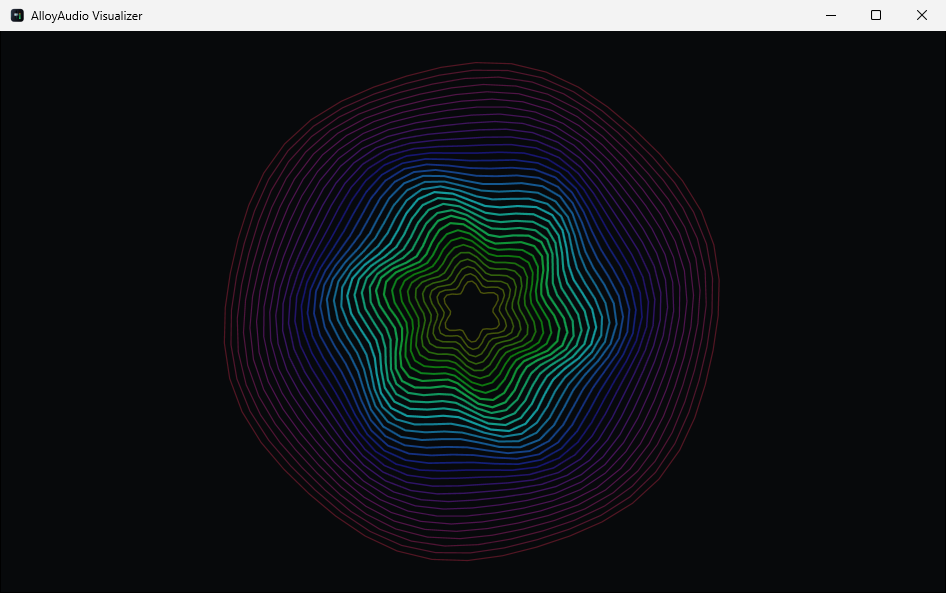
The AlloyAudio visualizer on Windows drawing rings of colour that ripple with the sound.
Visualizer on Windows (drawing area animated on this page; click for the real still)
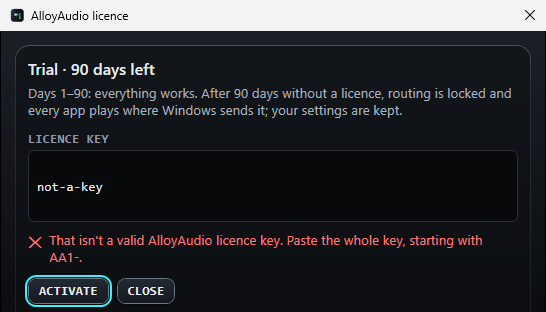
The AlloyAudio licence window on Windows showing Trial, 90 days left, with a made-up key refused: That isn't a valid AlloyAudio licence key.
Licence window, a made-up key refused

Everything included

The full feature list.

A per-app console with real numbers behind it: where every app plays, how its sound is shaped, and how the outputs stay in time. Badges show which build has each feature today.

Equalizer
25bands, ISO 266 ⅓-octave
Range
±12dB per band, 0.5 dB steps
Band shape
Q 4.32constant-Q at any gain
Filters
64-bitRBJ biquads, double precision
Alignment
1.5 smax delay per output
Install
0drivers or kernel extensions
The output bus on a Mac: four output devices, each with its sample rate, channels, bit depth, buffer size and latency, and the icons of the apps playing on it.
Output bus: format, buffer and latency per device (Mac)

01 · Routing

Any app, any output, any number of outputs.

  • Per-app output selection: every app gets its own channel strip and its own destination.MacWin
  • One app on several outputs at once, each with its own send level.MacWin
  • Many apps on one output, mixed by the operating system.MacWin
  • Routes set up before an app opens; the strip waits and engages on the first sound.MacWin
  • Output bus shows each device's sample rate, channel count, bit depth, buffer and latency.Mac
  • Routing bypass in one click: every app returns to the system output, settings kept.MacWin
  • Drag an app from Finder onto an output to route it.Mac
The AlloyAudio 25-band equalizer: a fader per band from 50 Hz to 12.5 kHz with live level bars behind the faders, a response curve, and bass and preamp controls.
25-band equalizer (Windows test build; the Mac has the same bands)

02 · Equalizer and tone

A constant-Q graphic EQ on every app and every output.

  • 25 bands on the ISO 266 one-third-octave centres, 50 Hz to 12.5 kHz.MacWin
  • Constant-Q (Q ≈ 4.32): the same bandwidth at every boost or cut, as on a dbx 231s or Klark Teknik DN370.Mac
  • ±12 dB per band in 0.5 dB steps; finer, down to 0.1 dB, in a taller window or with ⌥-drag.Mac
  • Preamp, in/bypass, live response curve and level bars behind the faders.MacWin
  • Bass control: a separate low shelf at 100 Hz, ±12 dB.MacWin
  • A/B compare: two curves per output, switched in 20 ms without a click.Mac
  • RBJ "Audio EQ Cookbook" biquads in double precision, transposed direct form II.Mac
  • Presets: Voice, Dance, Game, Bass, Treble, Rock, Pop, Classical, Loudness; each lowers the preamp to reduce clipping.MacWin
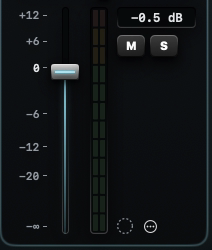
A channel fader on a Mac from +12 dB down to minus infinity, with a stereo LED level meter, the gain readout and mute and solo buttons.
A strip's fader, level meter, mute and solo (Mac)

03 · Dynamics and timing

Outputs that stay in time, and changes that never click.

  • Peak limiter last in each output's chain, after the EQ.MacWin
  • Latency alignment: an app's faster outputs are delayed to match its slowest, from each device's reported latency, up to 1.5 s.Mac
  • Manual delay per speaker, 0 to 1000 ms, for devices that under-report (often Bluetooth).Mac
  • 20 ms gain ramps; a new route is built and crossfaded in before the old one is retired.Mac
  • Fader to +12 dB, balance and mute on every strip.MacWin
  • Solo on every strip.Mac
  • Auto-duck: chosen apps dip while a call app plays.Mac
The console header on a Mac: Set Up App, Routing, Scenes, Solo, Visualizer and theme buttons. The left and right VU meters along the bottom of the console on a Mac.
Console header and the L/R VU pair (Mac)

04 · Metering, scenes and control

See the signal. Recall a whole setup in one key.

  • LED level meter on every strip and an analog-style L/R VU pair on the console.MacWin
  • Visualizer driven by the routed audio; on a Mac, with modes, shapes, colour themes and full screen.MacWin
  • Scenes: save the whole console under a name, recall it with ramps from the header, the menu bar or ⌃⌥1 to ⌃⌥9, and export or import scenes as JSON.Mac
  • Menu-bar mixer.Mac
  • Open at Login (Startup apps on Windows).MacWin
  • Export Diagnostics to a plain-text file you can read before sharing.MacWin

05 · Under the hood

macOS

Apple's Core Audio process taps (macOS 14.2 and later). No driver, no kernel extension, no system audio plug-in: the app is the whole install.

Windows

Windows per-process loopback capture, each app at 48 kHz stereo. No driver: unzip and run.

Both

Never changes the system output or any device volume. Designed so that if AlloyAudio stops, apps play where the system sends them. Audio is processed in memory and never written to disk.


Pricing

Try it free for 90 days. Then buy it once.

Everything works during the trial. When it ends, every app simply plays where macOS sends it, and your settings are kept for when you buy.

Download from this website

Free trial, then a licence key.

$39 one-time · 90-day free trial

  • The trial starts the first time AlloyAudio runs. No payment details needed.
  • Buy, and your licence key arrives by email. Paste it into the app to unlock it for good.
  • One licence per Mac. A licence is tied to the Mac it is first activated on; a new Mac needs a new licence. Reinstalling on the same Mac is always free.

A licence key from this website and a Mac App Store purchase are separate: each unlocks only its own version of AlloyAudio. Questions? See the licence FAQ.


Privacy

Your sound stays on your computer.

On a Mac, macOS asks you once to allow “System Audio Recording” for AlloyAudio. On Windows, the same job sits under Settings › Privacy & security › Microphone: “Microphone access” and “Let desktop apps access your microphone” must be on. That is how AlloyAudio picks up each app's own sound to play it on another speaker, and that is all it does with it. It does not record your microphone.

Read the privacy policy →

  • Audio never leaves your Mac or PC.
  • Nothing is recorded to disk.
  • Online only for the trial and licence check.
  • No analytics in the app.
  • No account.
FAQ

Questions, answered honestly.

Does AlloyAudio install a driver or change system settings?

No. There is no driver, no kernel extension and no system audio plug-in. It uses Apple's Core Audio process taps (macOS 14.2+), and it does not change the system output or any device volume.

Why does macOS ask for “System Audio Recording”?

To send an app's sound somewhere else, AlloyAudio has to pick it up first — macOS calls that permission System Audio Recording, and asks once. The audio is processed only on your Mac, nothing is recorded to disk and the audio is never sent anywhere. How to allow it.

What happens if AlloyAudio quits?

It is designed so your apps simply play on their usual speakers again. Pausing routing does the same thing on purpose, and keeps your choices for later.

LimitCan I route Safari?

Not yet. Safari and Safari web apps play through a shared macOS service and cannot be routed separately yet. Chrome, Firefox, Edge, Brave and Arc work: route the browser.

LimitWhy do I hear an echo with one app on two speakers?

Speakers are not time-aligned. The same app on two speakers in one room can echo, and Bluetooth adds delay. Multiple outputs work best when the speakers are in different places.

LimitWhy do the top EQ bands do nothing on my headset during a call?

Bluetooth headsets in call mode run at low sample rates, so the top EQ bands are skipped.

LimitAn app won't switch. What now?

An app launched before AlloyAudio may need one restart before it can be routed — quit it and open it again. Also check that System Audio Recording is allowed. More in Support.

Which Macs does it run on?

macOS 14.2 or later. AlloyAudio is built for Macs with Apple silicon.

Is there a Windows version?

Yes, as a test build for Windows 11 (64-bit), with the same console, per-app outputs, 25-band EQ, bass, limiter, meters and visualizer. Some Mac features, such as scenes, A/B compare and latency alignment, are not in it yet; the feature list marks each one. It is a zip, not an installer, and so far it has been tested only in a Windows 11 virtual machine. See Windows.

How much does it cost?

$39, once, after a 90-day free trial. There is no subscription and no AlloyAudio account. See Pricing.

How do licences work? Can I move to a new Mac?

One licence per Mac. A licence is tied to the Mac it is first activated on; a new Mac needs a new licence. Reinstalling on the same Mac is always free. To move an existing licence, contact support. The details — activating, moving, and what happens when the trial ends — are in the licence FAQ.


Requirements

What you need.

MacThe release

macOS 14.2+

macOS 14.2 or later.

Apple silicon

Built for Macs with Apple silicon.

One permission

macOS asks once to allow “System Audio Recording” for AlloyAudio.

WindowsThe test build

Windows 11

64-bit (x64). Tested so far only in a Windows 11 virtual machine on ARM, where it runs under emulation.

Unzip and run

A zip with AlloyAudio.Win.exe, no installer and no driver. SmartScreen may warn the first time: More info › Run anyway.

One setting

Settings › Privacy & security › Microphone: turn on “Microphone access” and “Let desktop apps access your microphone”. Windows files app-sound capture there.

Alloy Audio

Every app, on the speaker you choose.

macOS 14.2+ · Apple silicon · Windows 11 test build
